
Upload a photo of your house or building and see it with new paint, siding, stone, trim and door colours in about 30 seconds. Only the surfaces you name change; the building and its surroundings stay as they are.
Drop a photo of the house or building here
JPG, PNG or WebP • large photos are resized automatically
Each pair is a paying P20V user’s photo and the result of the instruction quoted under it.
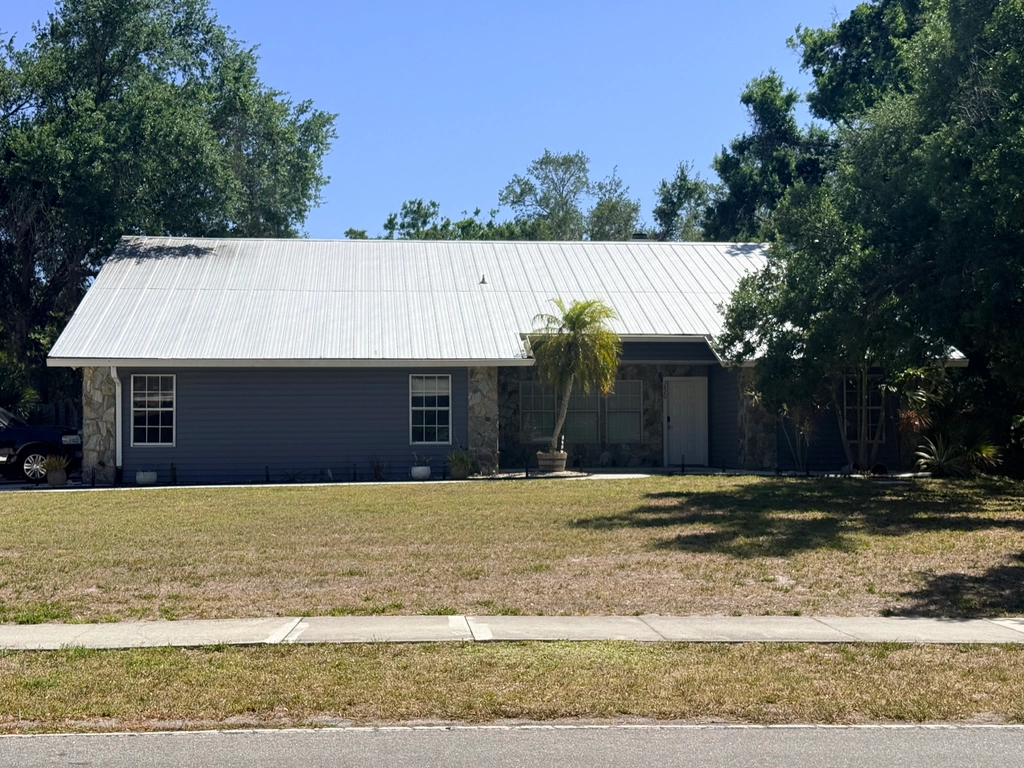 Before
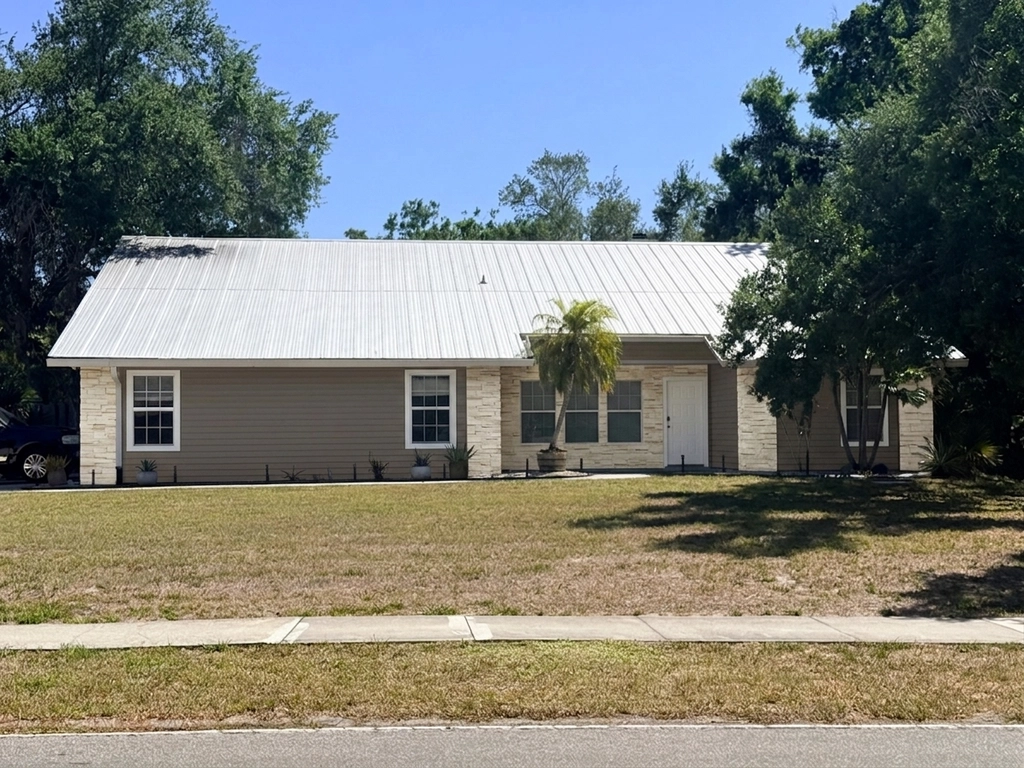 After
After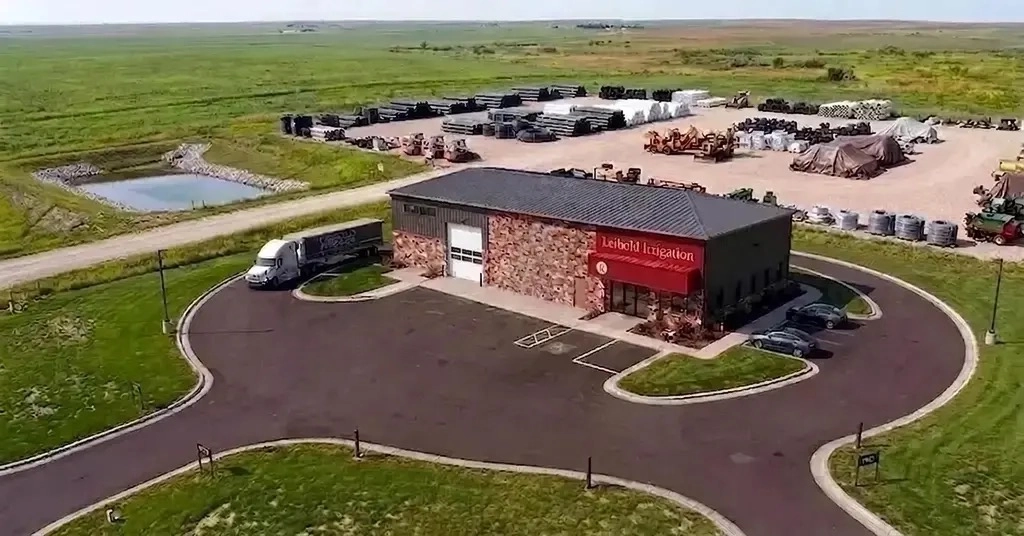 Before
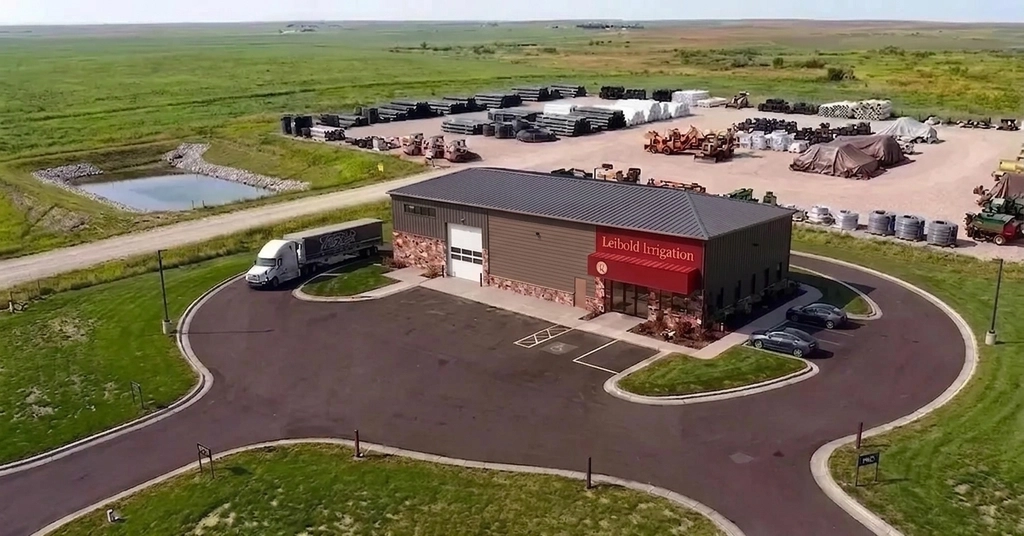 After
After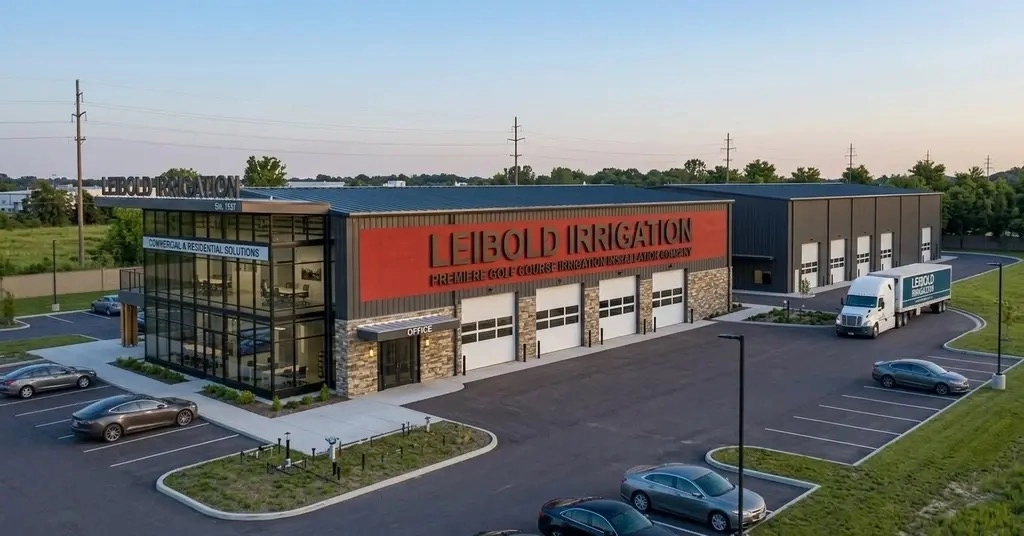 Before
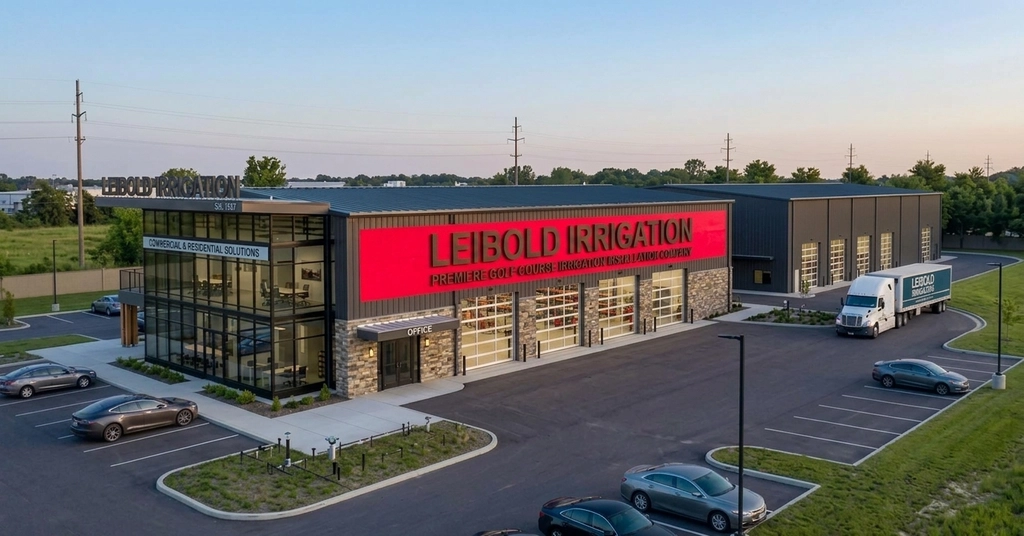 After
After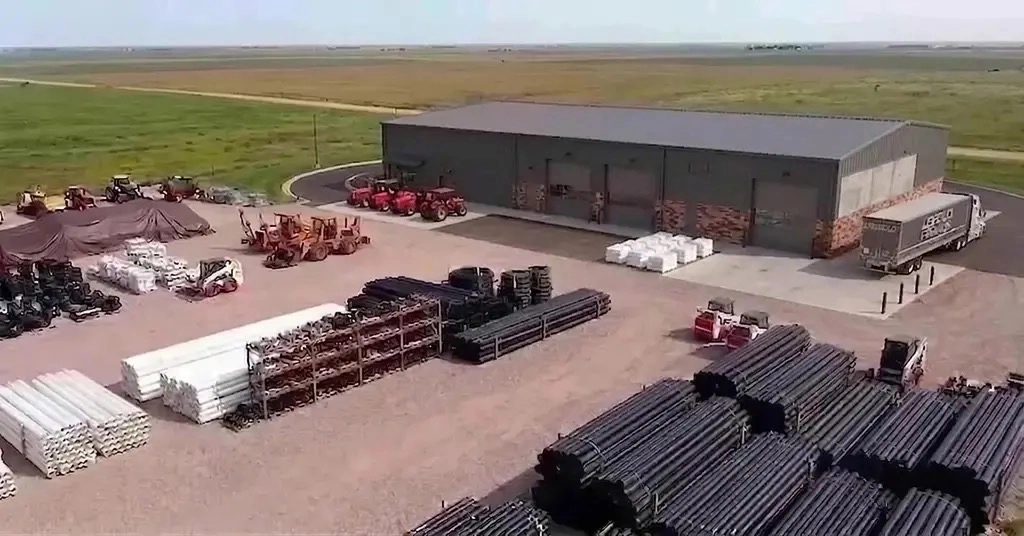 Before
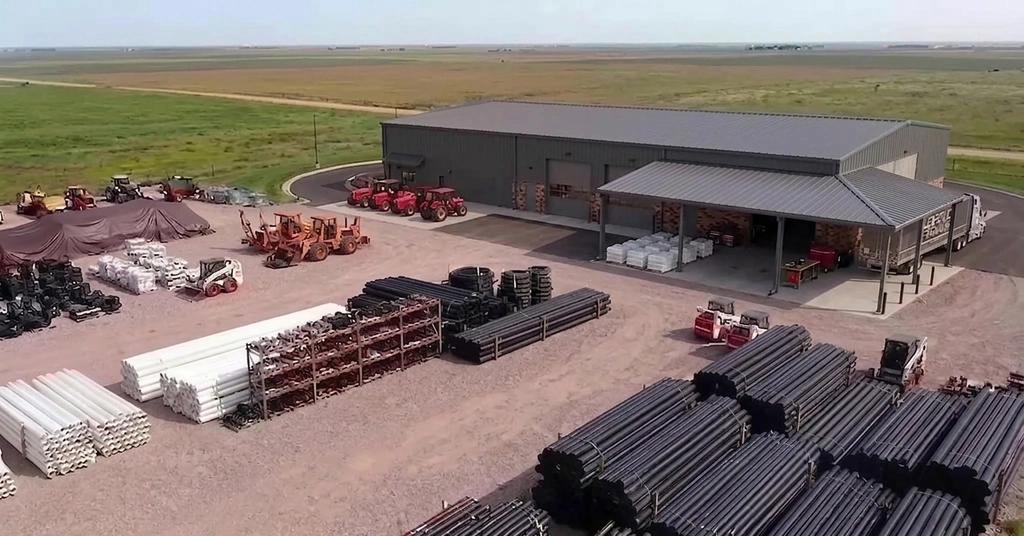 After
AfterReal uploads and results from paying P20V users, shared publicly. No retouching.
Paint chips and colour fans are tiny, and a colour that looks calm on a card can look loud across a whole wall in full sun. Repainting a house or re-cladding a building is expensive enough that most owners hesitate for months. A photo of the real building with the new colours on it settles the question in minutes.
The visualizer works on your photo, so the result is your house with your windows, roof and garden — not a sample house from a catalogue. You change one thing at a time in plain words, compare the versions side by side, and keep the one that works.
Typical jobs from paying users:
Name the surface and the new finish, and say what must stay: "keep original image, change the body colour of the house to taupe grey, keep the white trim and the roof". For several changes, do them one at a time — colour first, then doors, then the roof — so you can go back a step if one change goes too far.
To design a new facade from a sketch or elevation drawing, use the building facade renderer; for the garden and paving around the building, use the landscaping visualizer below.
Drop a straight-on daytime photo of the house or building into the box above.
Name the surfaces and colours: body, trim, doors, stone, siding, roof or signage.
Each version takes about 30 seconds. Keep the ones you like and download them.
Basic is $9.99 per month for 25 images; Starter is $29/month for 50 images ($14.50 for the first month), Pro $79/month for 200 images, Studio $199/month, billed in USD. EU buyers pay VAT on top; no tax is added outside the EU. Every plan includes commercial use, so you can show the designs to customers and print from them. Cancel anytime. See plans
Upload a photo of the house or building and describe the new exterior in plain words: "body colour taupe grey, white trim, black front door", "replace the stone on the upper facade with brown metal cladding". In about 30 seconds you get the same photo with only those surfaces changed — the roof line, windows, trees and street stay as they are.
You can name colours the way you would to a painter ("warm white", "sage green", "charcoal") or give a paint code; the tool matches the look, not the exact pigment. Always check a real sample on the wall before you buy paint, because screens and daylight change how a colour reads.
No. The same instruction can change siding, stone and brick, trim, shutters, garage and front doors, the roof colour, signage and awnings. The examples include cladding swaps and a new canopy on a commercial building, not just paint.
Homeowners choosing a colour before hiring a painter, painting and siding contractors showing a customer options with the quote, architects and builders presenting facade alternatives, and business owners planning their building’s colours and signage. The commercial examples above come from one company that tested its new building’s facade in dozens of versions.
No. P20V is a paid tool: Basic is $9.99 per month for 25 images; Starter is $29 per month for 50 images and its first month is $14.50. Every plan includes commercial use, so contractors can put the images into quotes and marketing. Cancel anytime.
A straight-on daytime photo of the facade with the whole building in frame works best; avoid strong shadows across the wall. Drone and street-level photos both work, as do renderings of a building that is not built yet.
The same editor, set up for each kind of outdoor job. AI facade & exterior design